HovalConnect App: More comfort and a better overview of your system
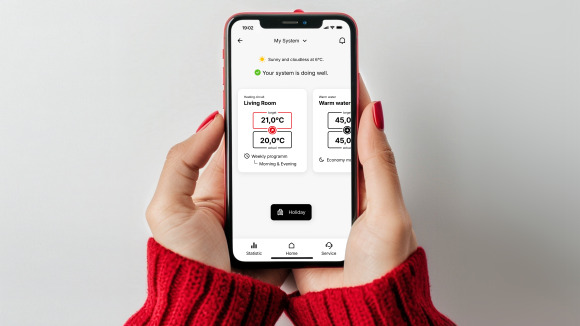
Control your heating simply and intelligently
With HovalConnect, you can easily control your Hoval system via the app – clearly, flexibly and tailored to your needs. The latest features make everyday use even more convenient, from individual heating and cooling programmes and temporary adjustments to weather data, statistics and a clear overview of your system status.
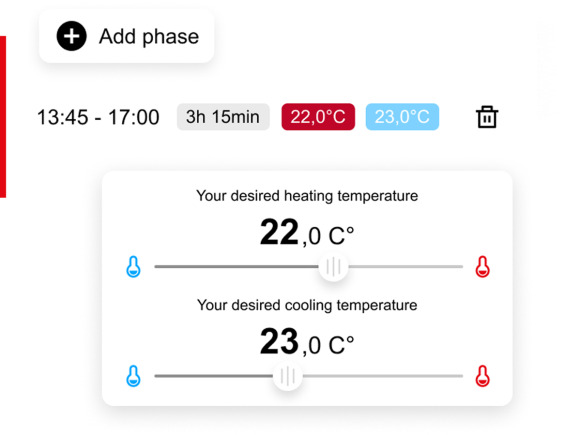
Set heating and cooling phases individually
With HovalConnect, you can easily adapt daily and weekly programmes to your everyday routine.
For each time period, you can define the desired room temperature – for both heating and cooling phases.
This allows your system to automatically provide the right level of comfort when you are at home or asleep, while helping you save energy when you want to.
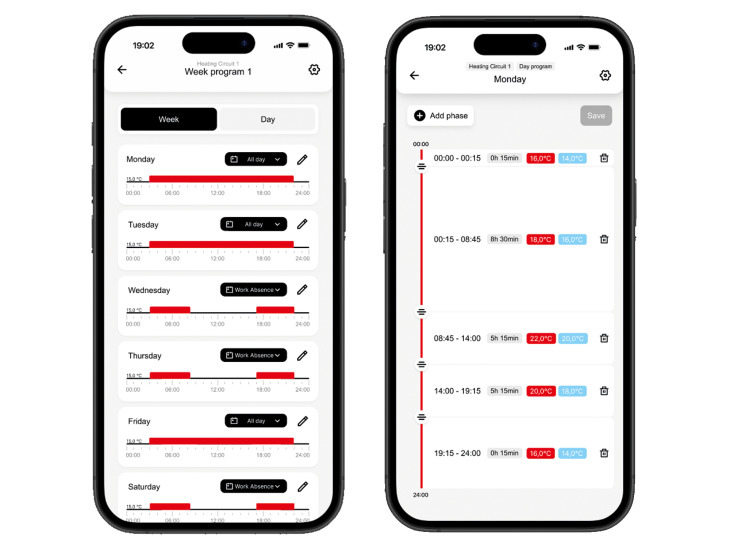
Time programmes
Control your system even more precisely
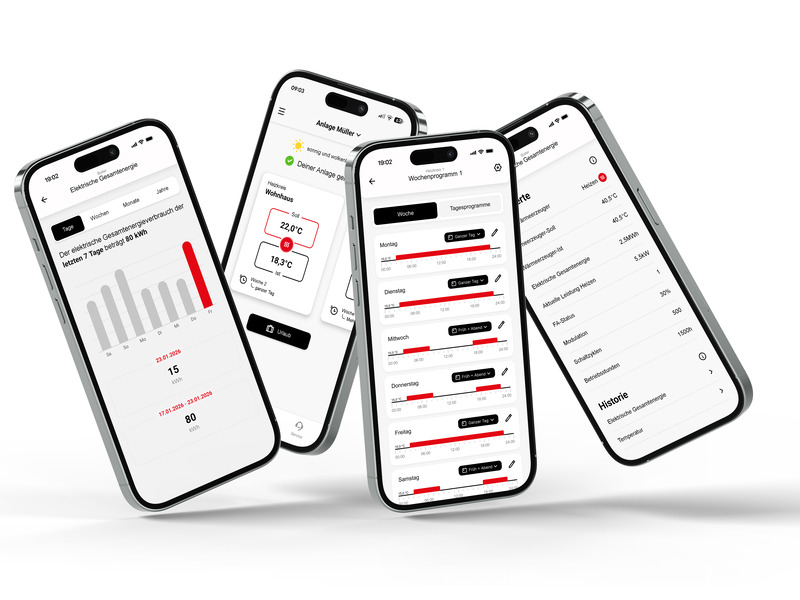
With HovalConnect, you can set up your daily programmes simply and flexibly. Assign programmes directly to the desired days of the week and define up to six individual time phases per day, each with the appropriate setpoint.
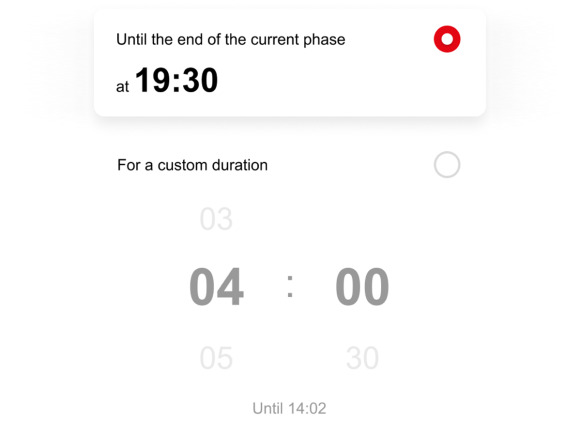
Temporary adjustments
Make flexible adjustments without permanently changing the programme
Sometimes you may want it to be warmer or cooler for a short period without changing the entire time programme. Temporary adjustments make this easy.
Adjustments remain active automatically until the end of the current time programme or for a maximum of 24 hours. HovalConnect then automatically returns to the saved programme.
Status and statistics
Better understand consumption and system operation
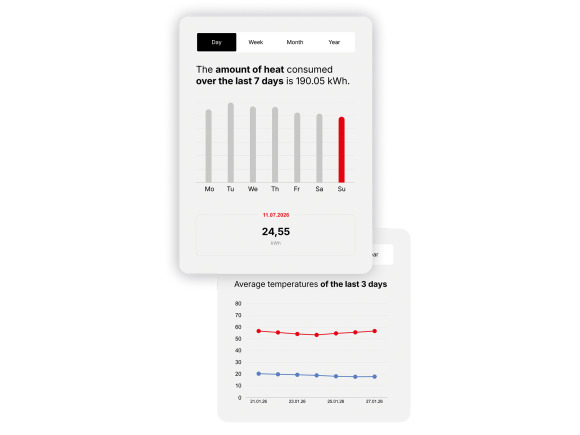
The statistics functions help you better understand how your system operates, track developments and identify correlations. Extended temperature data is available at 15-minute intervals. Using the legend, you can individually select which values are displayed.
This provides greater transparency and helps you use HovalConnect more effectively in everyday life.
Weather-based control
HovalConnect displays weather data directly in the app and supports predictive weather-based control.
Your system can now respond more effectively to current and upcoming weather conditions – for greater comfort and more efficient operation.
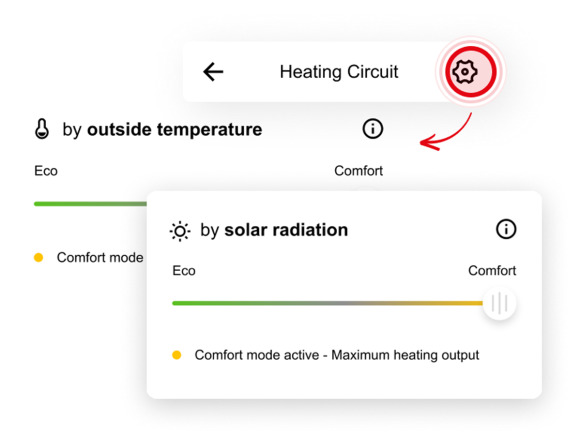
Heating output can also be adjusted based on solar radiation. This takes the natural warming of the building into account and helps optimise energy consumption.
The function is available for:
- Heating circuits
- Domestic hot water (requires an active solar system)
The balance between energy efficiency and comfort can be adjusted individually.
Note: This function must be activated on the control system before use.
Sorting heating circuits
Arrange your heating circuits to suit your needs
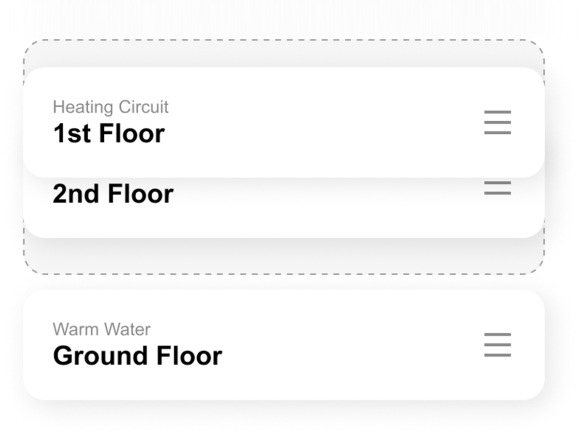
The home screen can now be adapted more easily to your personal needs. You can change the order of the heating circuits – for example, bathroom, kitchen, living room or bedroom.
This means you see the most important areas exactly where you expect them and can get an overview of your system more quickly.
HovalConnect is continuously evolving
HovalConnect is continually being improved, with a focus on ease of use, clarity, stability and practical features for everyday life. User feedback plays an important role and helps us develop the app step by step.
Rate the app now!
HovalConnect makes controlling your system simpler, more transparent and more convenient, contributing to a better digital customer experience. If you are happy with HovalConnect, we would appreciate a review in the Apple App Store or on Google Play.

HovalConnect App for Apple

HovalConnect App for Android
HovalConnect FAQ
- Full flexibility for daily and weekly programmes
No restrictions in the use of the HovalConnect App with the TopTronic E control module.
- Easier and more intuitive operation
Clear adjustment and control options for heating and hot water circuits as well as HomeVent.
- More meaningful statistical data
Expanded values in all heating and hot water circuits as well as for the heat generators.
- Finer data resolution
All values are now shown in 15-minute intervals – both for 24 hours and for 3 days.
- Significantly improved stability
More reliable connectivity and more robust system performance.
- Faster response times
Changes to settings can be made much more quickly.
Note for existing users of app version 2.x Your existing settings will be retained.
The previous options “24/7” and “Night reduction” are now included in the visible weekly programme “Comfort”.
All programmes can be freely assigned to any day of the week – there are no fixed allocations.
Please update to version 3.0.
Download and open the app and register as a customer.
Log in and select “Add plant”.
Then enter the gateway serial number and the corresponding Plant Key (or use the QR code on the registration card) and confirm these details.
Please note:
It may take several minutes for the plant to appear online in the app.
For security reasons, the email address can only be changed by contacting our customer service team.
Please use the contact form on the right to request the change. We will contact you to discuss what steps need to be taken.
Important for private individuals:
Please use a private email address instead of a company email where you are an employee.
For security reasons, the WLAN password can only be changed on a Hoval control module directly – either on your Hoval plant or a wall-mounted control module. To do this, please follow the steps in the instructions.
For security reasons, the WLAN can only be changed on one of the Hoval control modules directly – either on your Hoval plant or a wall-mounted control module. To do this, please follow the steps in the instructions.
The times in plant messages shown on the heating control module may differ from the times displayed on the HovalConnect platform or in an e-mail or push notification.
Want to make sure you are using the latest version of the HovalConnect app?
The HovalConnect app is provided via the Apple (iPhone) and Google (Android) app stores. As soon as a new version of the app is available, you can download it from those stores.
You can use the automatic update function to ensure you are always running the latest version. But if you prefer to update your apps manually, you can find the new version in whichever app store you use.
See here for a guide on how to set up automatic updates or perform a manual update:
Guide for Apple iPhone (iOS): https://support.apple.com/en-gb/HT202180
Guide for Android: https://support.google.com/googleplay/answer/113412?hl=en
If your plant is showing as “offline” or the connection drops out frequently, this may be down to a number of reasons – e.g. Internet problems, WLAN signal strength or settings on the control module.
1. Check the Internet connection
Are other websites or apps running slowly or not working at all?
In this case, there is probably a problem with your Internet connection.
Please contact your Internet provider.
2. Check settings on the control module
Please check the following settings directly on the control module:
- Gateway DHCP settings
Click here to access step-by-step instructions.
- Gateway network connection
Click here to access step-by-step instructions.
3. Check the WLAN signal
Use your smartphone or laptop to test the WLAN signal strength right next to the gateway.
- No signal or just 1 bar?
The WLAN signal is too weak for a stable connection.
Possible solutions: - Connect the gateway via LAN cable
- Use a WLAN repeater
Please contact your network engineer (electrician) for assistance.
4. Restart the gateway
If you have checked all of the points above:
- Switch off the gateway
- Disconnect the plug for 30 seconds
- Switch the gateway back on
If the problem persists, please contact the HovalConnect service team: connect@hoval.com
Are you having problems with the HovalConnect app on your smartphone?
Your smartphone’s operating system
Please start by checking your smartphone’s operating system. The HovalConnect app runs on the Android and Apple iOS operating system versions that are supported by the manufacturers. Unfortunately, you cannot use HovalConnect on smartphones with older operating system versions. If you do not have an up-to-date operating system, you can use HovalConnect via a browser. In this case, you will receive your plant messages via e-mail rather than push notifications.
Reinstalling the app
If your operating system is not the problem, it may help to uninstall the app and download it again from whichever app store you use (Google Play or the Apple App Store). See your smartphone’s user guide for information on how to uninstall an app, or go direct to Google (Android) or Apple:
Android: https://support.google.com/android/answer/2521768?hl=en
Apple: https://support.apple.com/en-gb/HT207618
If reinstalling does not solve the problem, please contact the HovalConnect service team at connect@hoval.com.
What is the Plant Key?
The Plant Key is a unique combination of letters and numbers.
It is used to add your Hoval plant to your HovalConnect account (this is a one-off procedure).
Where do I find the Plant Key?
You can find the Plant Key on the registration card you received with your HovalConnect gateway.
Registration card no longer to hand?
Please email full details of your gateway serial number to:
connect@hoval.com
How to display the serial number on the control module: see instructions
Having problems entering the Plant Key?
Please make sure that the Plant Key is entered exactly as it appears on the registration card.
Pay particular attention to the following points:
- No spaces
- Caps Lock is not activated
- Do not mistake I (the letter i) for 1 (the number one)
- Do not mistake O (the letter o) for 0 (the number zero)
Still having problems?
If you are still struggling to enter the Plant Key, please contact the HovalConnect service team: connect@hoval.com
The app only runs on smartphones for now.
The LED indicators on the gateway provide information about the current operating state and possible connection problems. An overview of the LED colours and what they mean can be found here.
To ensure that the Hoval gateway and Hoval digital services continue running smoothly, please enable the ports and IP addresses specified in the firewall settings on your router.
Click “Forgot password?”. Follow the instructions. You will then receive a separate email that you can use to reset your password.
You can find out how to restart your gateway here.
You can customise the daily and weekly programmes for your plant to meet your specific needs.
Click the corresponding tile to select the heating or hot water circuit for which you wish to modify the programmes.
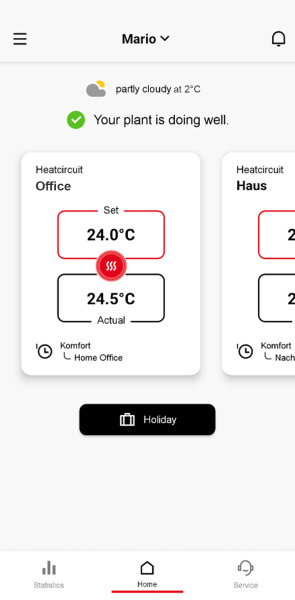
Next, open the drop-down menu and select the desired operating mode.
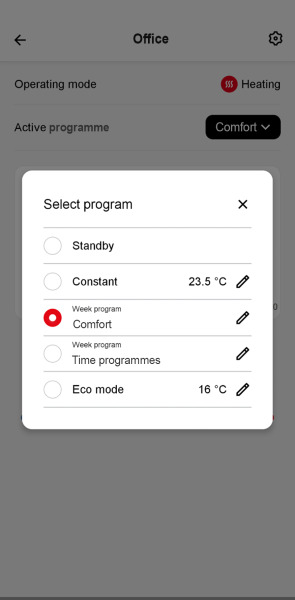
Then click the “Pencil” icon.
Adjust the required settings in the windows that appear next. You can allocate the daily programmes to the different days of the week and can also adjust the programmes individually.
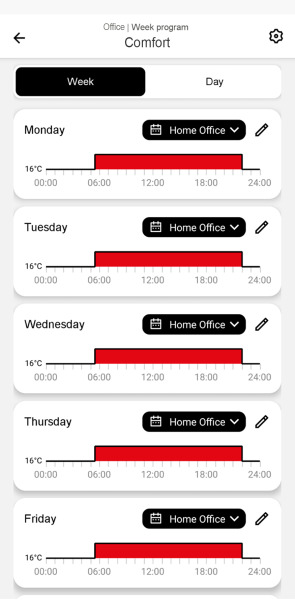
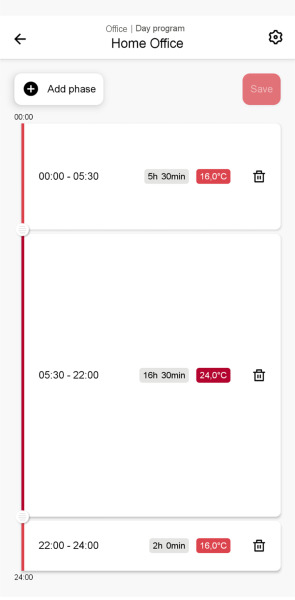

Drag the sliders up or down to select the desired time periods.
To define the temperature, click on the relevant phase.
Before you leave the screen, click “Save” to transfer the new settings to your Hoval plant.
In the HovalConnect app, you can use the same programmes that are also available on the TopTronic E control module.
Programmes per heating circuit / hot water circuit
Basic programmes:
- Standby
- Two weekly programmes:
- Week 1
- Week 2
- Five daily programmes:
- All day
- Longer day
- Early & late
- Only evening
- NEW
Additional programmes:
- Constant mode (same temperature consistently)
- Economy mode (energy-saving mode)
If you have been using the simplified app logic up to autumn 2025
The programmes you are familiar with are still available – they have just been reallocated:
Existing programmes will appear as follows with version 3.0:
- 24/7 (constant temperature) can be found in the “Comfort” weekly programme
- Night reduction (2 temperature values at 2 times) can also be found in the “Comfort” weekly programme
- Time programme (2 temperature values on different days) in “Time programmes” weekly programme as of version 3.0
- Standby unchanged (plant in frost protection)
- Click “User Management” in the menu.
- Select “Add user”.
- Decide what you want to share – the entire plant or individual heating circuits – and enter the email address of the person with whom you want to share.
- Save your entry. You will then receive a confirmation message.
Follow the instructions to display the serial number easily in your control module.
1. Manual setting
If you need an increased hot water temperature for legionella protection on a one-off basis:
- Open the app
- In the domestic hot water area, set the temperature slider manually – e.g. to 65°C
- The temperature remains active for the selected duration (e.g. four hours)
If you would like the system to reach this temperature again, you must repeat the process.
2. Setting via programmes (automated)
You can also define a specific daily programme which contains a regular legionella phase:
- Open “Edit weekly programme” (pencil icon) in the app
- Tap “Day”
- Select an existing daily programme and adapt as necessary
- Add a heating phase at 65°C for domestic hot water
- Give the programme a customised name (gear icon), e.g. “Legionella”
- Allocate the new daily programme to a day of the week
- Activate the weekly programme which contains your “Legionella” daily programme
No. The values shown in the control module are based on mathematical approximations and are for guidance only. They are not suitable for official billing purposes.
For accurate and reliable billing, please use only the data from your actual electricity metre.
Yes. With HovalConnect, you can link multiple systems to a single user account and manage them centrally – even if they are located in different places.
All linked systems are displayed in a single system overview. There, you can see the most important information at a glance:
- System name
- Current system status
- Serial number
From the system overview, you can select the desired system at any time and switch to the corresponding detailed view.
If you have a large number of systems, the search function helps you find the right one quickly. You can search by system name or serial number. This keeps management simple and clear, even with many systems.